
How to Schedule Recurring Messages in a Microsoft Teams Channel (Without Power Automate)
By Mike Dalisay · Last updated November 2026
The short answer: Microsoft Teams can schedule a channel message to send once, but it can’t repeat it. For a recurring channel post, like a standup reminder every Monday and Wednesday at 9:00, you need a Power Automate flow or a scheduler. ZuperPost connects to your channel through a Teams Workflows webhook and repeats the message daily, weekly on the days you choose, or monthly, in your own time zone.
We run on Google Chat, not Teams. I use ZuperPost to post my leadership thoughts to our team leaders group automatically (how that works in Google Chat). The same recurring setup works for Teams channels, and that’s what this guide covers.
What Teams can do on its own
Schedule a channel message once. Since early 2025, you can write a channel post, open Actions and apps, choose Schedule message, and pick a date and time. You can edit, reschedule or delete it before it sends (Microsoft Support; rollout per MC953752).
Its limits, according to Microsoft’s own page:
- One send per message. There’s no repeat option.
- Teams on Android doesn’t support scheduling channel messages.
Chat messages can be scheduled the same way (Microsoft Support). They don’t repeat either.
The usual workaround: Power Automate
Microsoft’s answer for repeats is a Power Automate flow: a Recurrence trigger plus a Post message in a chat or channel action. It works, but Teams admins on Reddit keep running into the same three problems:
- The time is in UTC by default. “Note that the time is in UTC, if you need a converter I used Time Zone Converter.” (r/MicrosoftTeams)
- Picking weekdays takes extra logic. “I want to set up a message that gets posted to a channel every Monday and Wednesday… it only allows for very generalized recurring time.” The suggested fix: “Change the schedule to run everyday, but Add some logic… that checks if it is actually Monday or Wednesday.” (r/MicrosoftTeams)
- It’s a flow to build and maintain. Every message becomes its own automation, with its own owner.
The ZuperPost way: about 3 minutes, no flow
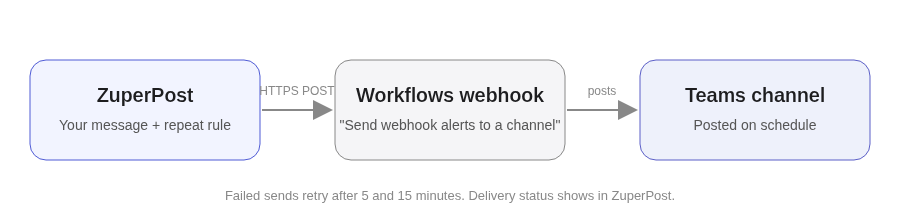
ZuperPost sends to Teams through Microsoft’s current Workflows webhook. Microsoft fully retired Office 365 Connectors, including the old Incoming Webhook, on May 18–22, 2026 (Microsoft 365 Dev Blog; Microsoft Learn).
1. Create a Workflows webhook in your channel.
In Teams, open the channel and select ⋯ → Workflows. Choose the template that posts to a channel when a webhook request is received; Microsoft lists it as Send webhook alerts to a channel. Save it and copy the URL.
2. Connect Teams in ZuperPost.
Sign in at app.zuperpost.com, add Teams as a channel, and paste the URL. Add one webhook per channel. There’s no limit on channels.
3. Write the message.
Add text and up to 10 images. ZuperPost checks the post before you schedule it.
4. Set the repeat.
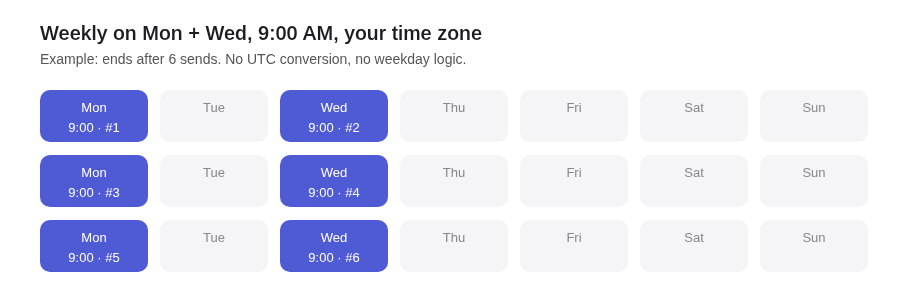
Choose Daily, Weekly on the days you pick (for example Mon and Wed), or Monthly. Set the time in your own time zone. End on a date, after a number of sends, or never.
5. Watch it on the calendar.
Every occurrence shows on the calendar, with the delivery status of each send. Failed sends retry automatically after 5 and 15 minutes. Edit or cancel one occurrence or the whole series.
You can send the same post to Slack, Google Chat, Discord and your social channels at the same time. More on the Microsoft Teams message scheduler page.
Comparison (checked November 2026)
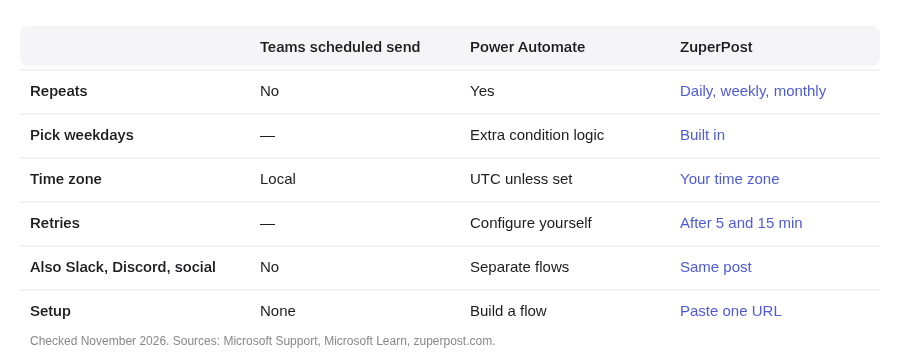
| Teams scheduled send | Power Automate | ZuperPost | |
|---|---|---|---|
| Channel posts | Yes | Yes | Yes (via Workflows webhook) |
| Repeats | No | Yes | Daily, weekly or monthly |
| Pick weekdays (Mon + Wed) | — | Needs extra condition logic | Built in |
| Time zone | Your local time | UTC unless you set it | Your own time zone |
| Android | Not supported for channels | Depends on the flow, not the app | Web app |
| See all upcoming posts | Per message | Per flow | One calendar |
| Delivery status and retries | — | Configure yourself | Per send, retries after 5 and 15 min |
| Also posts to Slack, Discord, social | No | Separate flows | Yes, same post |
| Setup | None | Build a flow | Paste one webhook URL |
FAQ
Can Teams schedule recurring channel messages natively?
No. Teams schedules a channel or chat message once. Repeats need Power Automate or a tool like ZuperPost.
Do old Incoming Webhook URLs still work?
No. Office 365 Connectors were retired May 18–22, 2026. Create a Workflows webhook instead.
Can I post to a private channel?
Microsoft says Workflows webhooks support private channels. Create the webhook inside that channel.
Who appears as the sender?
Microsoft says posts sent through a Workflows webhook show the default Workflows (Flow bot) identity, and you can’t change the name or icon.
What happens if someone deletes the webhook?
Sends to that channel fail and show as failed in ZuperPost. Create a new webhook and reconnect.
Is ZuperPost free to start?
Yes. You can start free with no credit card, and there’s no limit on scheduled posts, channels or brands.
About the author
Mike Dalisay is a former software engineer who co-founded Codalify in 2015. He builds SociableKIT and ZuperPost, and Codalify runs its own brands, including SociableKIT, on ZuperPost every day.
Set it once. It just posts.
Start free →